Sysmon - Install
Summary
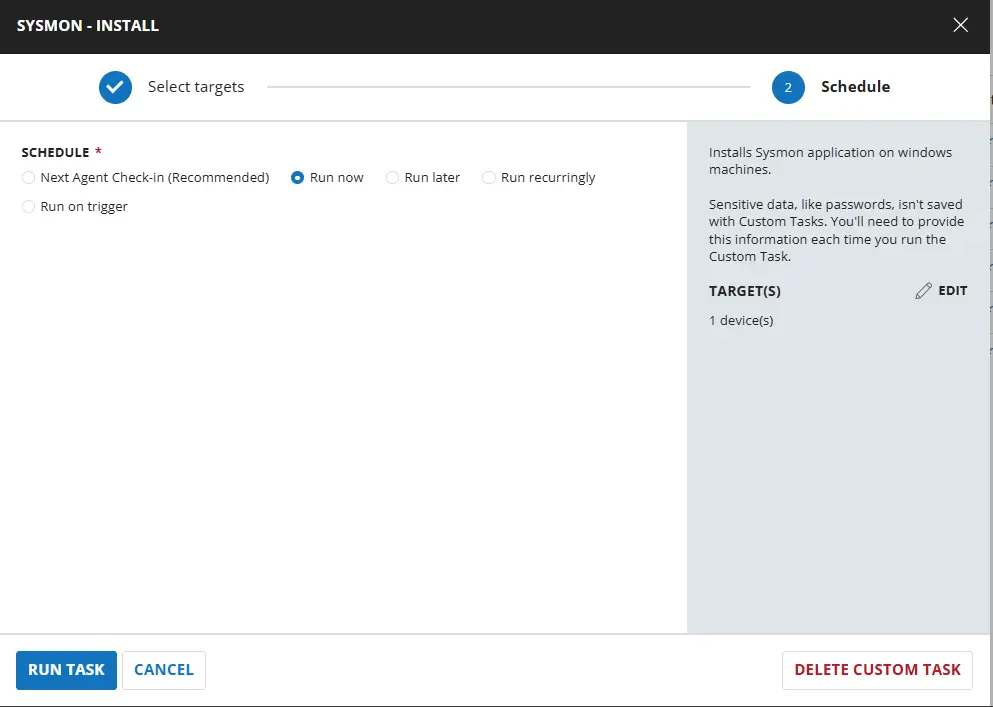
Installs Sysmon application on Windows machines.
Sample Run
Dependencies
Task Creation
Script Details
Step 1
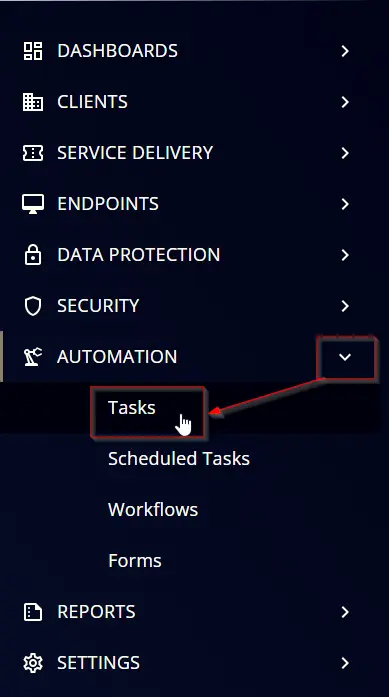
Navigate to Automation ➞ Tasks
Step 2
Create a new Script Editor style task by choosing the Script Editor option from the Add dropdown menu
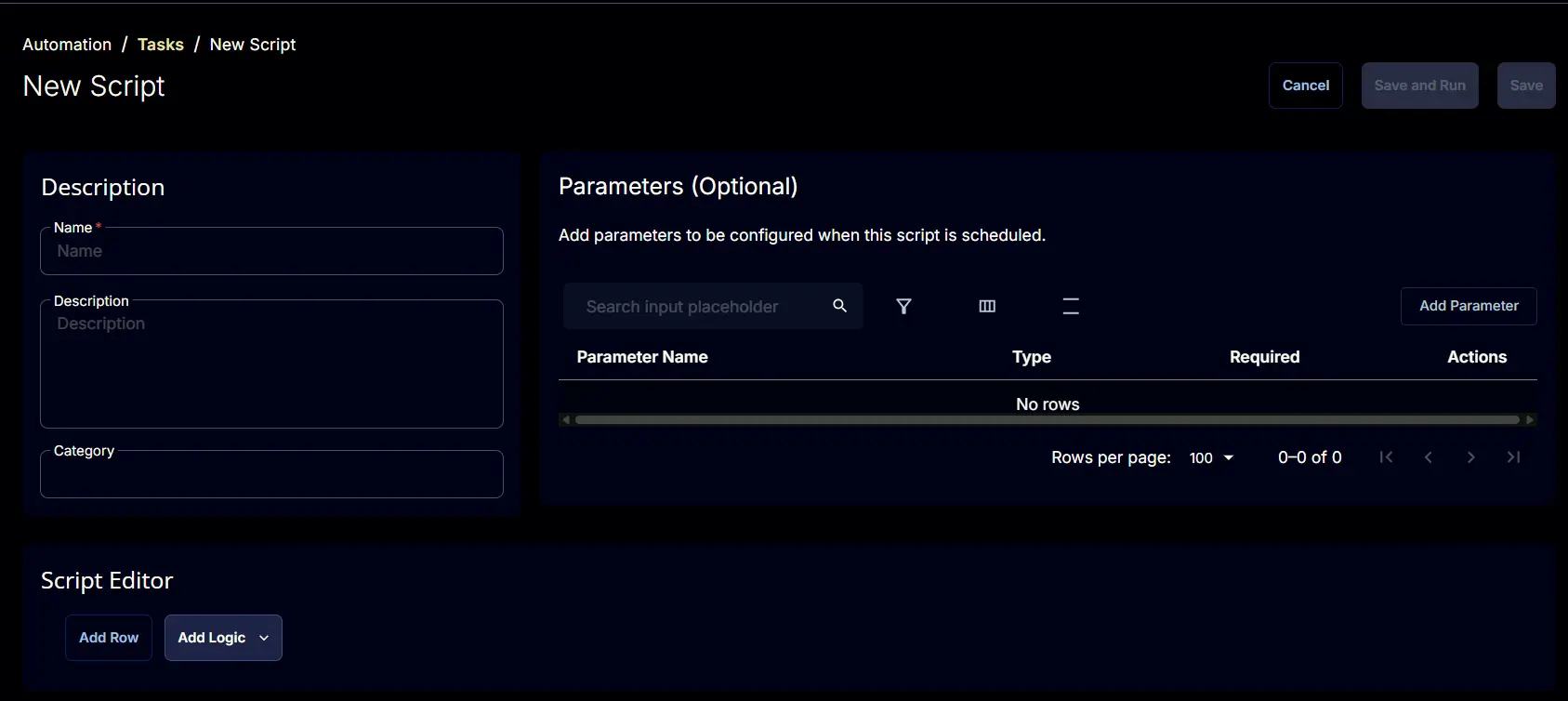
The New Script page will appear on clicking the Script Editor button:
Step 3
Fill in the following details in the Description section:
- Name:
Sysmon - Install - Description:
Installs Sysmon application on windows machines. - Category:
Application
Script Editor
Click the Add Row button in the Script Editor section to start creating the script
A blank function will appear:
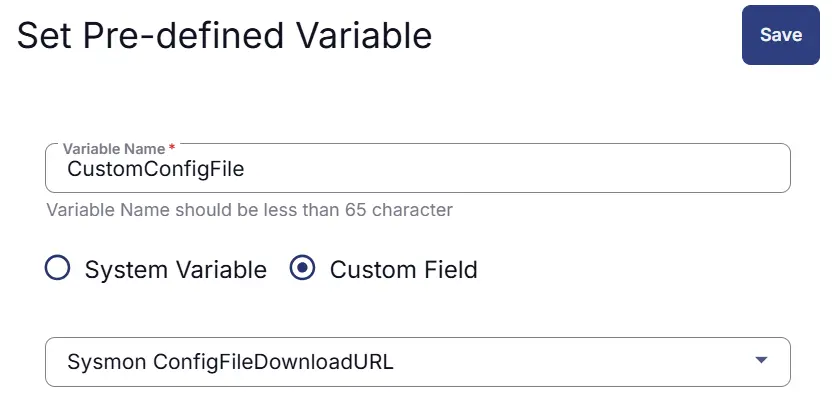
Row 1: Function: Set Pre-defined Variable
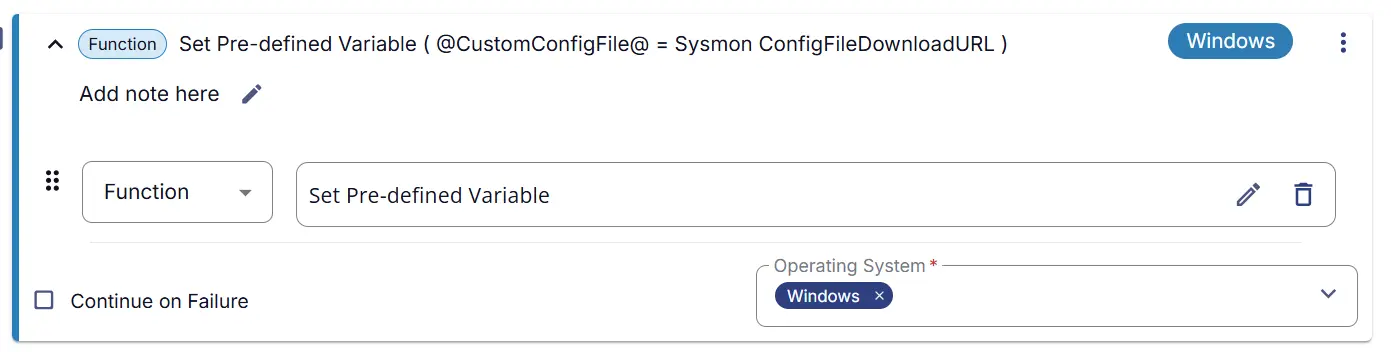

This sets the variable CustomConfigFile with the value of a custom field Sysmon ConfigFile DownloadURL
Row 2 Function: PowerShell Script
Search and select the PowerShell Script function.
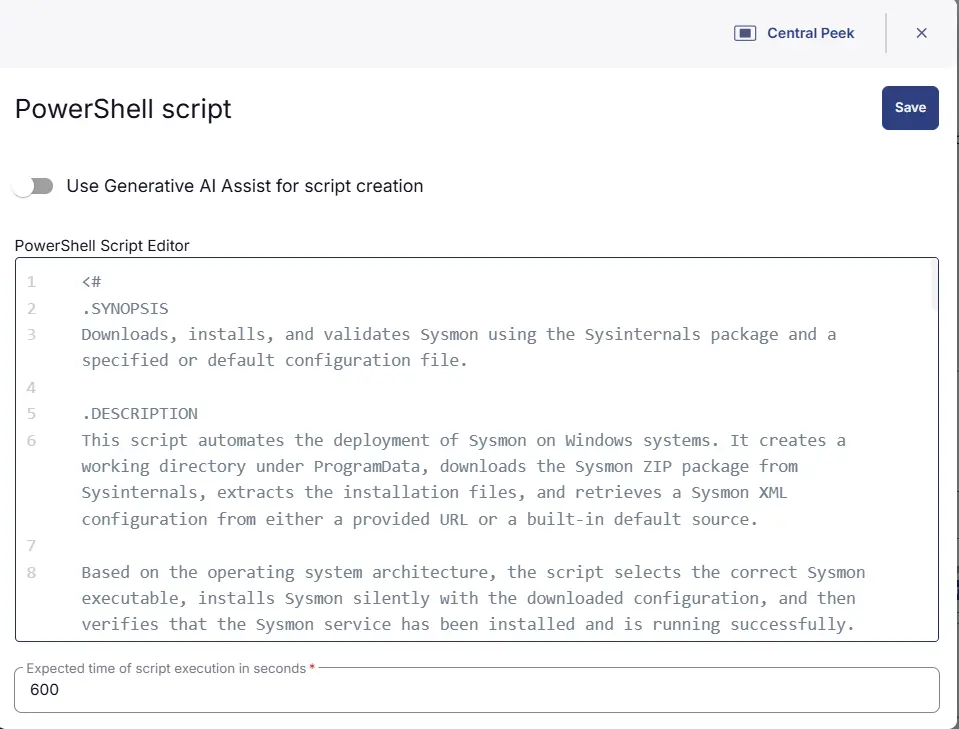
The following function will pop up on the screen:
Paste in the following PowerShell script and set the Expected time of script execution in seconds to 600 seconds. Click the Save button.
<#
.SYNOPSIS
Downloads, installs, and validates Sysmon using the Sysinternals package and a specified or default configuration file.
.DESCRIPTION
This script automates the deployment of Sysmon on Windows systems. It creates a working directory under ProgramData, downloads the Sysmon ZIP package from Sysinternals, extracts the installation files, and retrieves a Sysmon XML configuration from either a provided URL or a built-in default source.
Based on the operating system architecture, the script selects the correct Sysmon executable, installs Sysmon silently with the downloaded configuration, and then verifies that the Sysmon service has been installed and is running successfully.
This script is intended to simplify Sysmon deployment and ensure that a configured and operational instance is installed with minimal manual intervention.
#>
# set the progress preference to silently continue to avoid progress bars during download and extraction
$ProgressPreference = 'SilentlyContinue'
$Customconfigfile = '@CustomConfigFile@'
if ($Customconfigfile -and ($Customconfigfile).Length -gt 2) {
write-output "Using the Configuration File from Client Custom Field"
$ConfigFileDownloadURL = $Customconfigfile
}
else {
write-output "No Defined URL for the Sysmon configuration file provided. Setting the default configuration file.'https://raw.githubusercontent.com/SwiftOnSecurity/sysmon-config/master/sysmonconfig-export.xml'"
$ConfigFileDownloadURL = 'https://raw.githubusercontent.com/SwiftOnSecurity/sysmon-config/master/sysmonconfig-export.xml'
}
# Define variables for paths and URLs
$ProjectName = 'Sysmon'
$workingDirectory = '{0}\_Automation\Script\{1}' -f $env:ProgramData, $ProjectName
$zipDestination = '{0}\{1}.zip' -f $workingDirectory, $ProjectName
$unzipPath = '{0}\{1}' -f $workingDirectory, $ProjectName
$ConfigFile = '{0}\ConfigFile.xml' -f $workingDirectory
$DownloadURL = 'https://download.sysinternals.com/files/Sysmon.zip'
# Create a WebClient instance and download the Sysmon zip file
$webClient = [System.Net.WebClient]::new()
New-Item -Path $workingDirectory -ItemType directory -Force
[Net.ServicePointManager]::SecurityProtocol = [Net.SecurityProtocolType]::Tls12
$WebClient.DownloadFile($DownloadURL, $ZipDestination)
# Verify the downloaded files
if (Test-Path -Path $ZipDestination) {
write-output "Sysmon zip file downloaded successfully to $ZipDestination"
} else {
write-output "Failed to download Sysmon zip file."
}
Expand-Archive -LiteralPath $ZipDestination -DestinationPath $UnzipPath -Force
# Download the Sysmon configuration file
$WebClient.DownloadFile($ConfigFileDownloadURL, $ConfigFile)
# Verify the Config file
if (Test-Path -Path $ConfigFile) {
write-output "Sysmon configuration file downloaded successfully to $ConfigFile"
} else {
write-output "Failed to download Sysmon configuration file."
}
# Install Sysmon with the downloaded configuration file
if (((Get-CimInstance Win32_OperatingSystem).OSArchitecture) -match '64'){
$SysmonExePath = '{0}\Sysmon64.exe' -f $UnzipPath
} else {
$SysmonExePath = '{0}\Sysmon.exe' -f $UnzipPath
}
$arguments = "-accepteula", "-i", $ConfigFile
start-process -filepath $SysmonExePath -argumentlist $arguments -wait -windowstyle hidden
# Verify Sysmon installation
if (((Get-CimInstance Win32_OperatingSystem).OSArchitecture) -match '64') {
$servicename = 'Sysmon64' # Default service name for 64-bit Sysmon
} else {
$servicename = 'Sysmon' # Default service name for 32-bit Sysmon
}
$sysmonService = Get-Service -Name $servicename -ErrorAction SilentlyContinue
if ($sysmonService -and $sysmonService.Status -eq 'Running') {
write-output "Sysmon installed and running successfully."
} else {
write-output "Sysmon installation failed or the service is not running."
}

Row 3 Function: Script Log
Add a new row by clicking the Add Row button.
A blank function will appear.
Search and select the Script Log function.
In the script log message, simply type %output% and click the Save button.
Save Task
Click the Save button at the top-right corner of the screen to save the script.
Completed Task
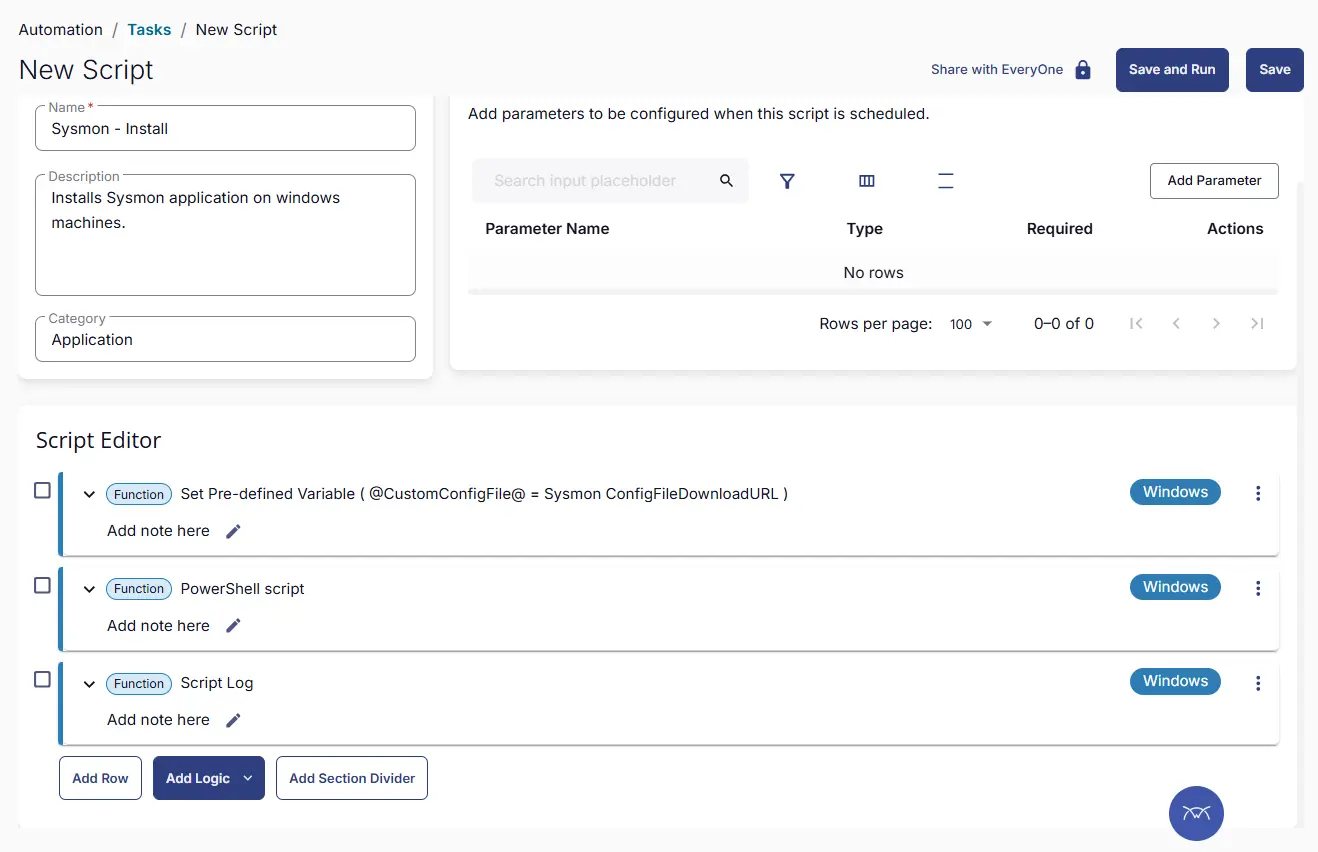
Output
- Script Logs
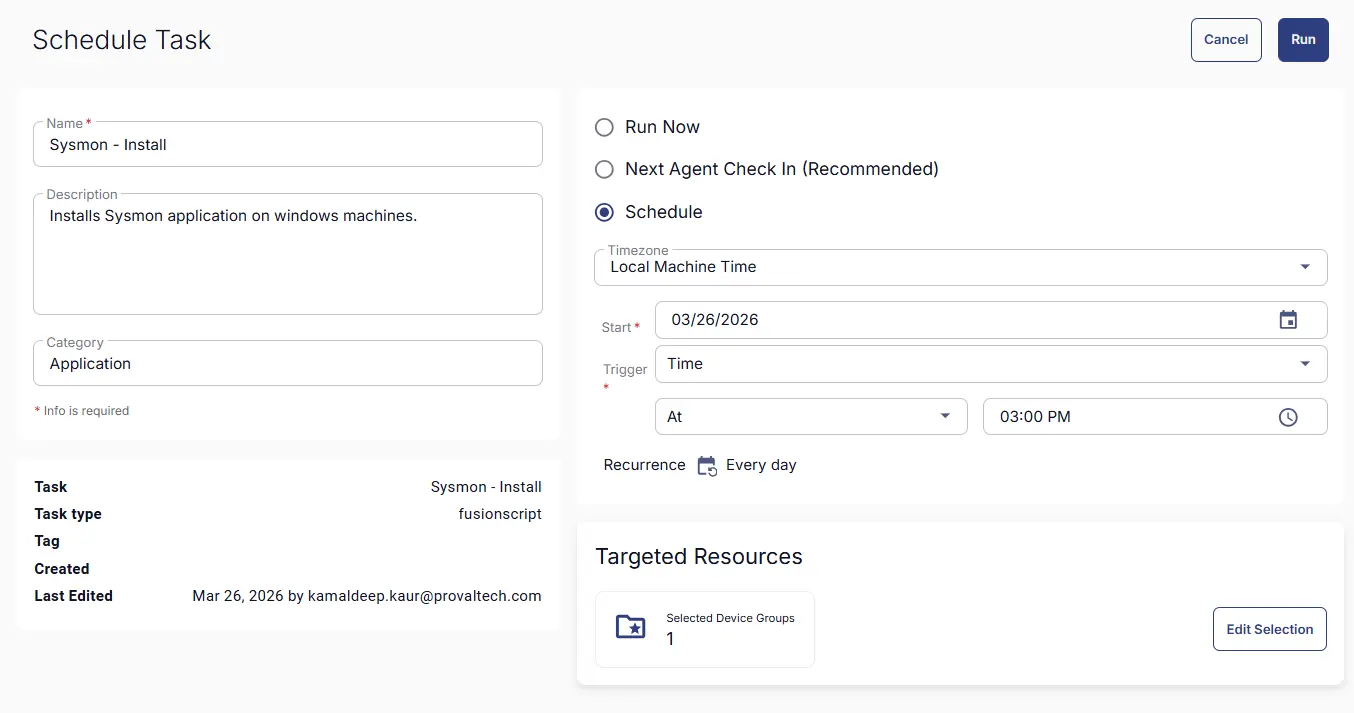
Schedule Task
Task Details
- Name:
Sysmon - Install - Description:
Installs Sysmon application on windows machines. - Category:
Application
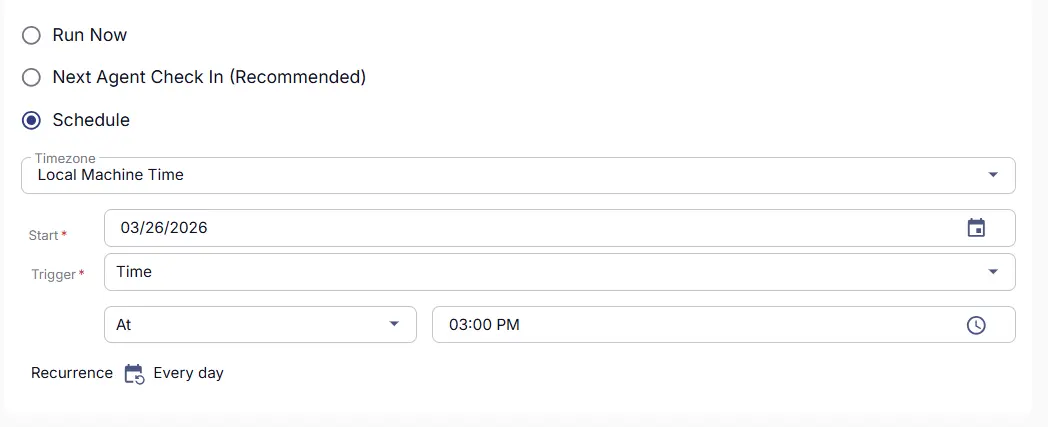
Schedule
- Schedule Type:
Schedule - Timezone:
Local Machine Time - Start:
<Current Date> - Trigger:
TimeAt<Current Time> - Recurrence:
Every Day
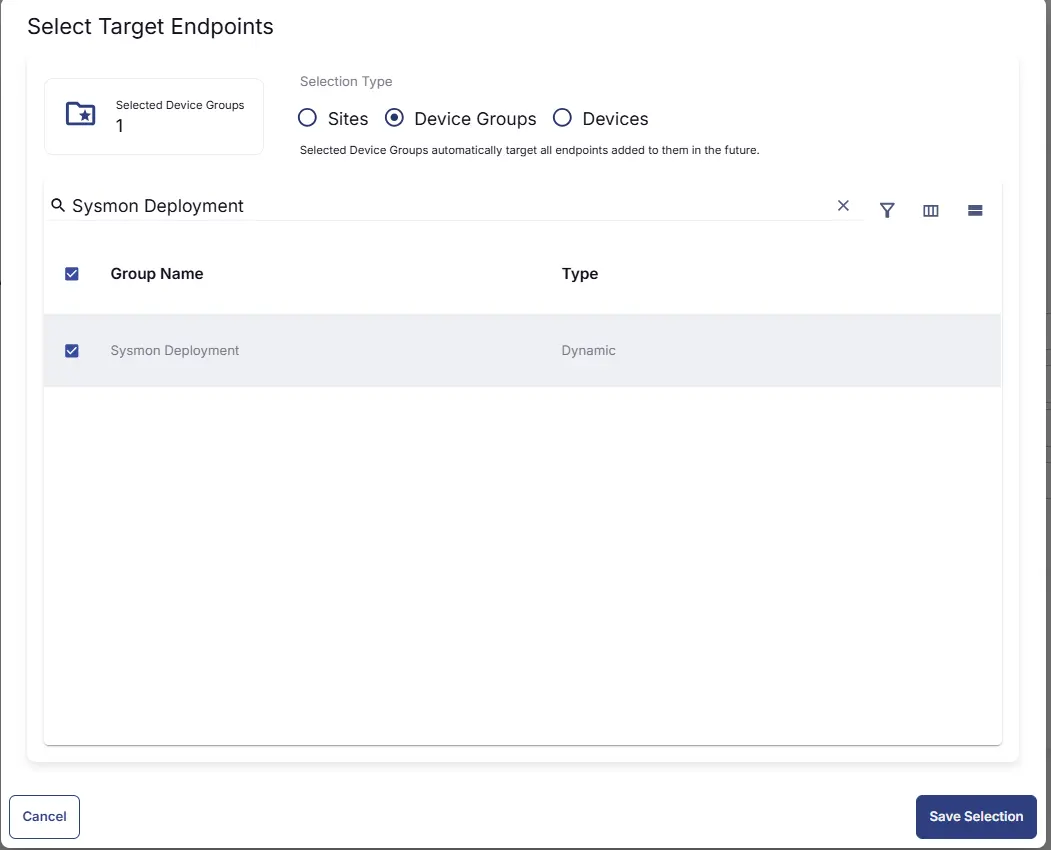
Targeted Resource
Device Group: Sysmon Deployment
Completed Scheduled Task
Changelog
2026-03-26
- Initial version of the document