Install AutoElevate Agent
Summary
This script automates the deployment and update of the AutoElevate on windows and macintosh machines by downloading the latest installer, running the installation silently, and validating that the agent has been successfully installed.
Sample Run
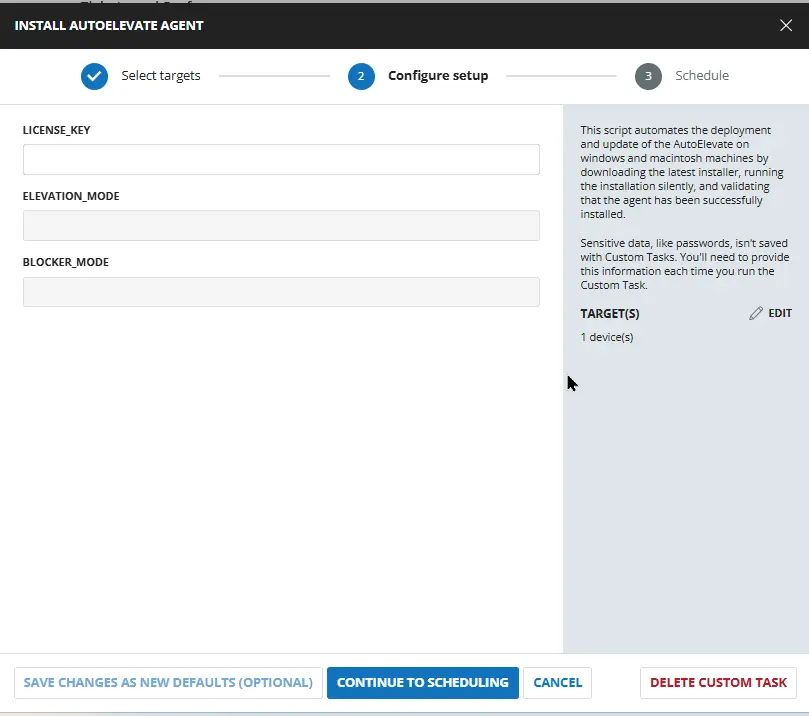
Dependencies
- Solution : AutoElevate Deployment
- AE Blocker Mode
- AE Elevation Mode
- AE Company Short Initials
- AE License Key
User Parameters
| Name | Type | Option Type | Options | Required | Default | Description |
|---|---|---|---|---|---|---|
| License_Key | Text String | - | - | False | - | Add AutoElevate License Key. It is required for installing and registering the AutoElevate agent. If not provided script will use the values from Custom Field: AE License Key |
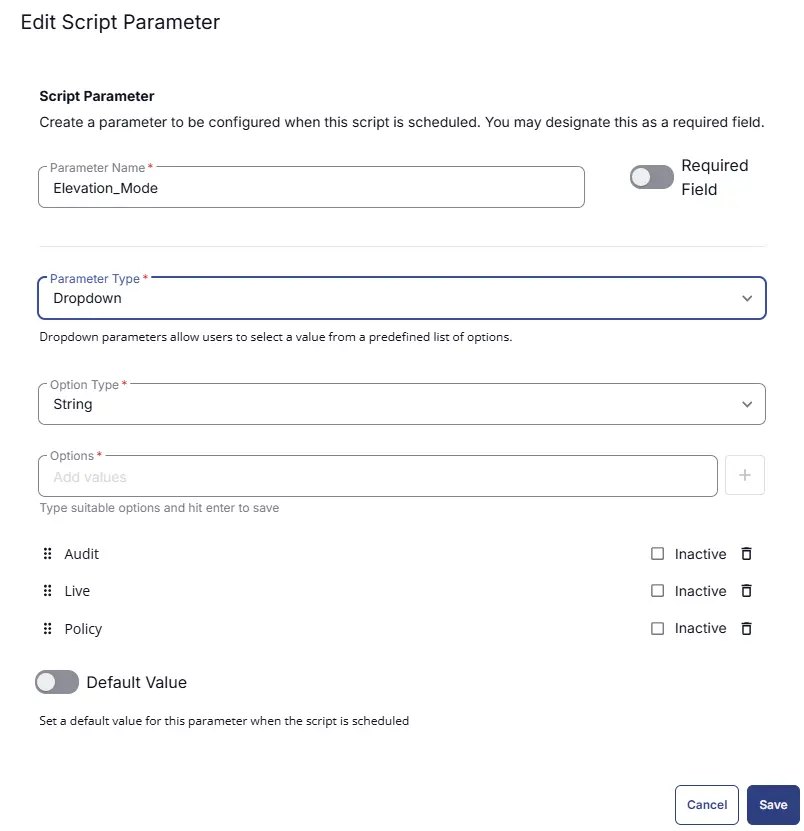
| Elevation_Mode | DropDown | String | Audit,Live,Policy | False | - | Choose the Auto Elevate Elevation Mode to determine how privilege elevation requests are handled on the device once the agent is installed. If not provided script will use the values from Custom Field: AE Elevation Mode |
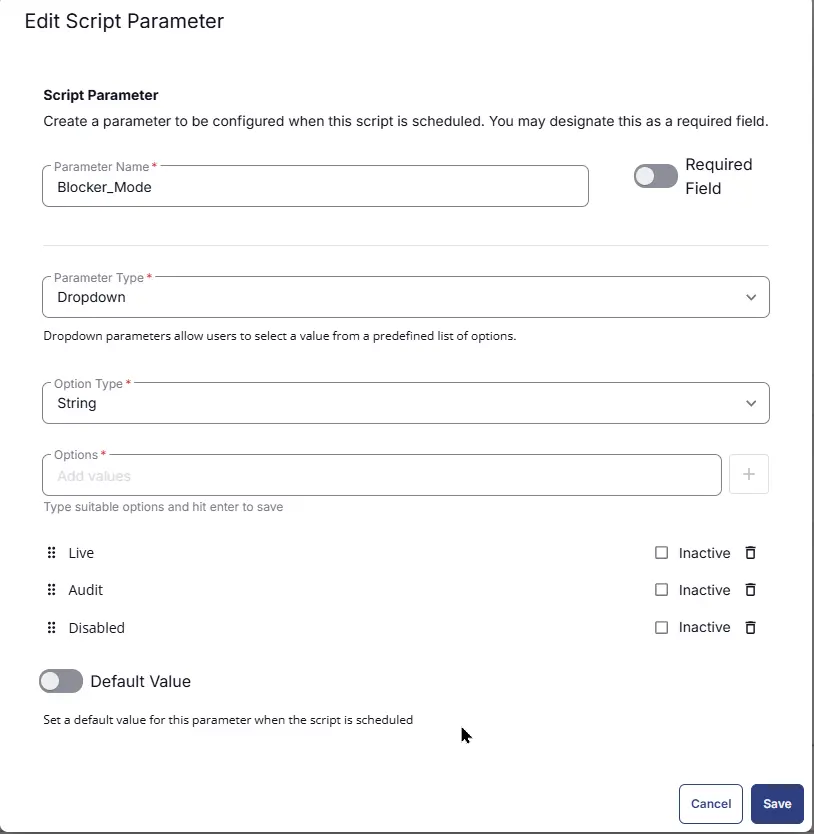
| Blocker_Mode | DropDown | String | Audit,Live,Disabled | False | - | Select the Auto Elevate Blocker Mode configuration to configure for the end user at the time of installation. If not provided script will use the values from Custom Field: AE Blocker Mode |
Task Creation
Script Details
Step 1
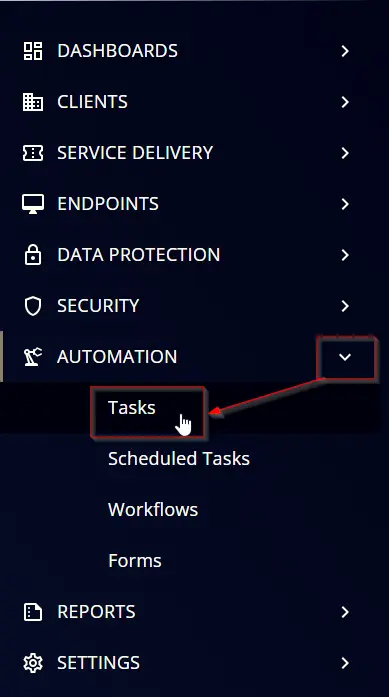
Navigate to Automation ➞ Tasks
Step 2
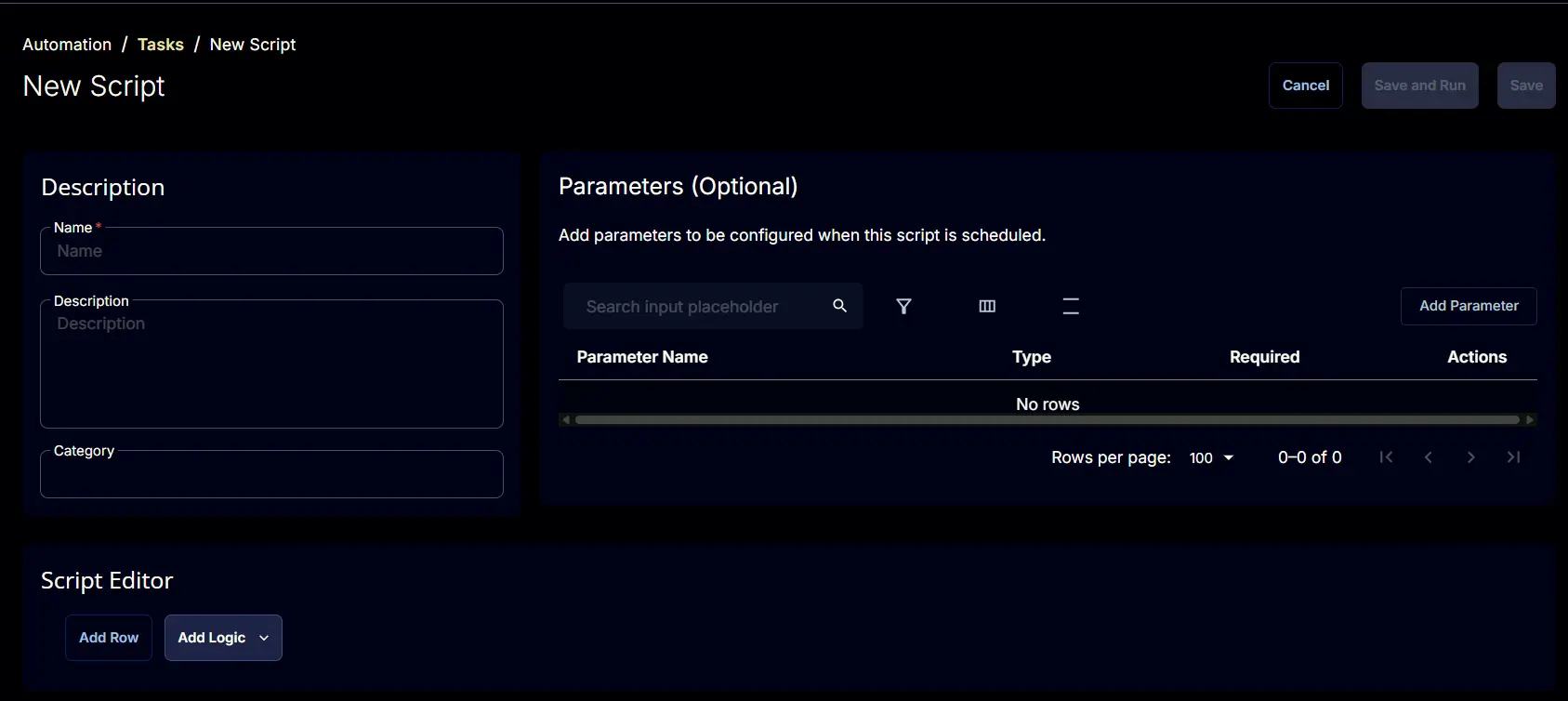
Create a new Script Editor style task by choosing the Script Editor option from the Add dropdown menu

The New Script page will appear on clicking the Script Editor button:
Step 3
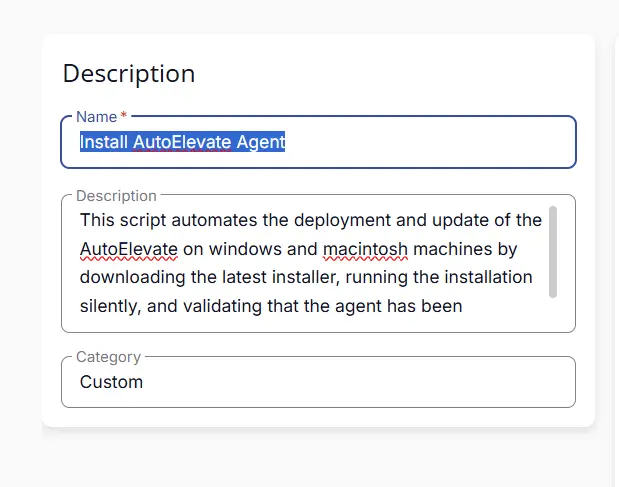
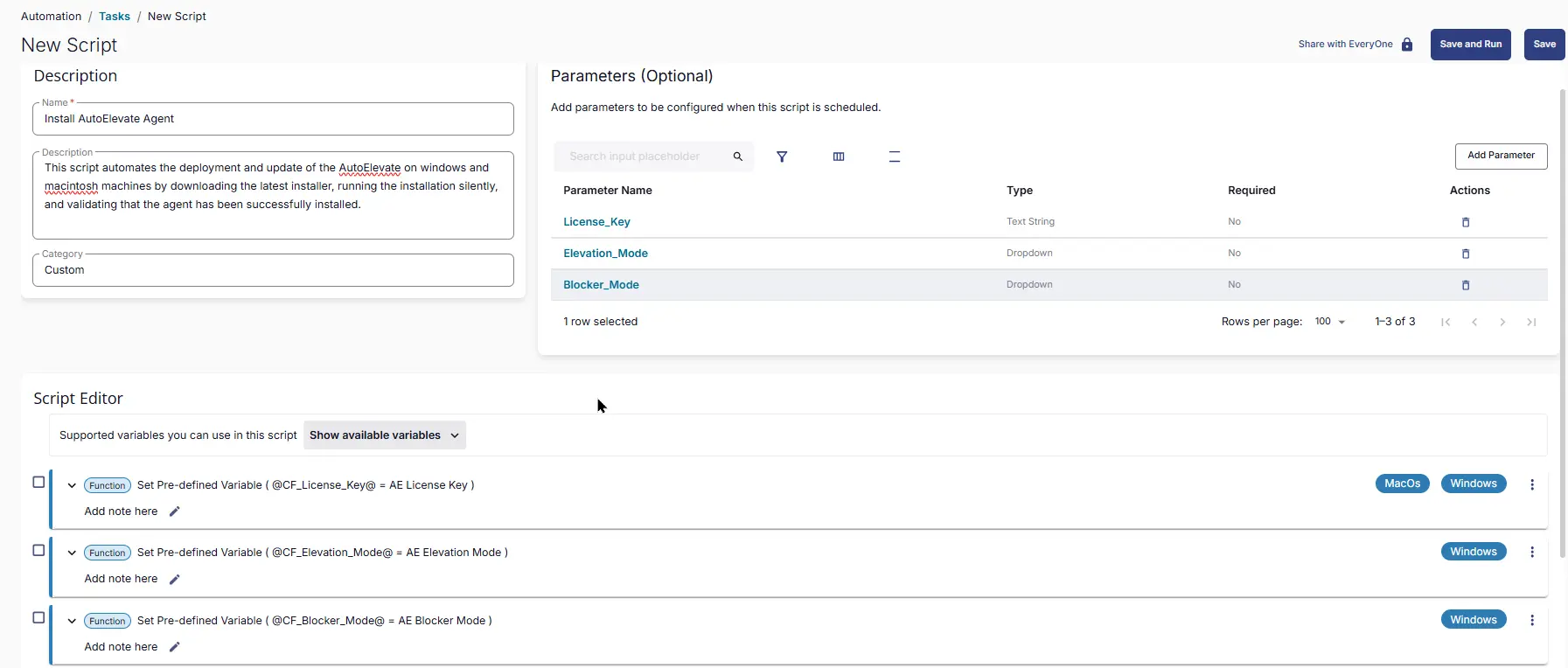
Fill in the following details in the Description section:
Name: Install AutoElevate Agent
Description: This script automates the deployment and update of the AutoElevate on windows and macintosh machines by downloading the latest installer, running the installation silently, and validating that the agent has been successfully installed.
Category: Custom
Parameters
License_Key
Add a new parameter by clicking the Add Parameter button on the right-hand side of the screen and click on it to create a new parameter.

The Add New Script Parameter page will appear on clicking the Add Parameter button.
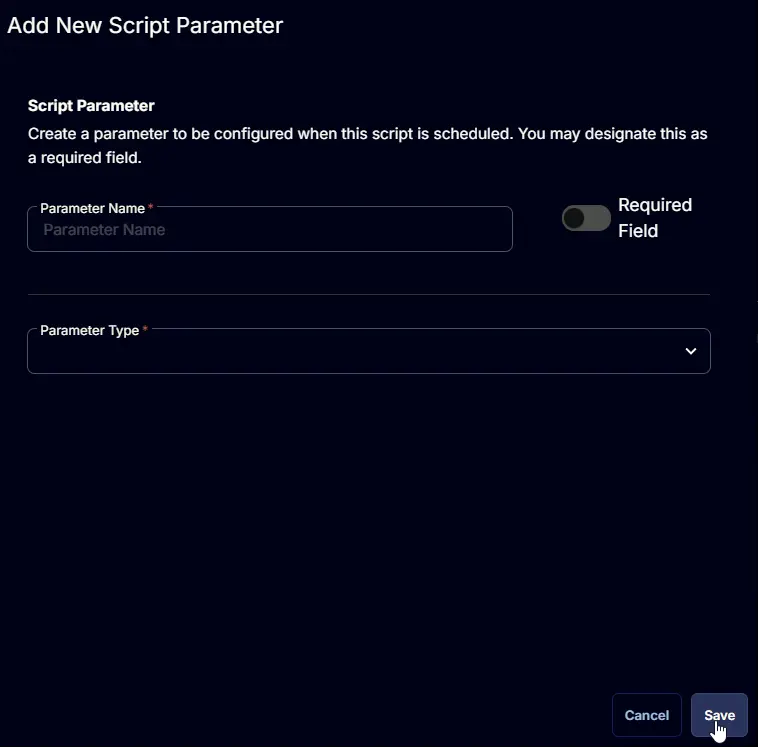
- Set
License_Keyin theParameter Namefield. - Select
Text Stringfrom theParameter Typedropdown menu. - Click the
Savebutton.
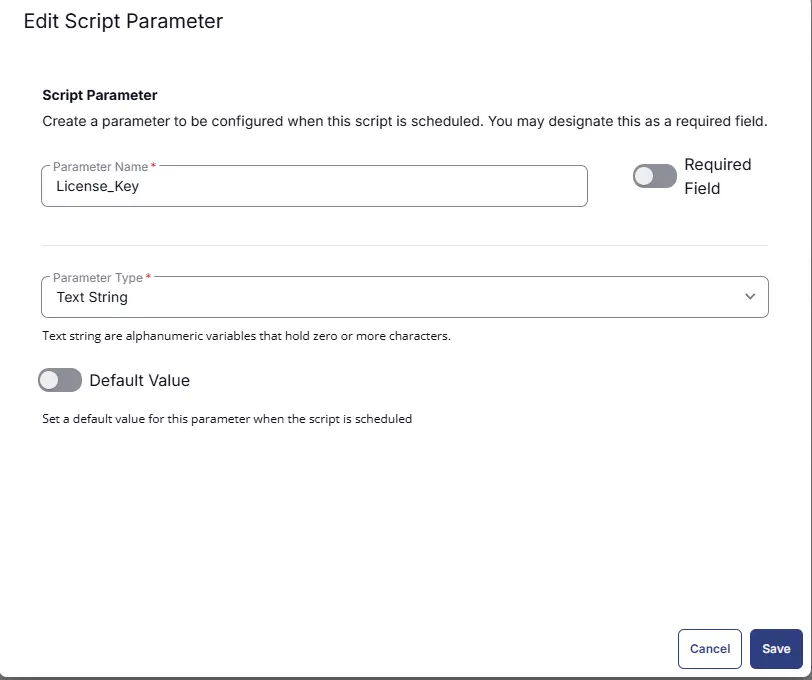
Elevation_Mode
Add a new parameter by clicking the Add Parameter button on the right-hand side of the screen and click on it to create a new parameter.
The Add New Script Parameter page will appear on clicking the Add Parameter button.
- Set
Elevation_Modein theParameter Namefield. - Select
Dropdownfrom theParameter Typedropdown menu. - Select
Stringas the Option Type. - Add
Audit,Live,Policyin the options. - Click the
Savebutton.
Blocker_Mode
Add a new parameter by clicking the Add Parameter button on the right-hand side of the screen and click on it to create a new parameter.
The Add New Script Parameter page will appear on clicking the Add Parameter button.
- Set
Blocker_Modein theParameter Namefield. - Select
Dropdownfrom theParameter Typedropdown menu. - Select
Stringas the Option Type. - Add
Audit,Live,Disabledin the options. - Click the
Savebutton.
Script Editor
Click the Add Row button in the Script Editor section to start creating the script

A blank function will appear:

Row 1 Function: Set Pre-defined Variable (@CF_License_Key@ = AE License Key)
- Notes:
<Leave it Blank> - Continue on Failure:
False - Operating System:
Windows,MacOS - Variable Name:
CF_License_Key - Custom Field:
AE License Key

Row 2 Function: Set Pre-defined Variable (@CF_Elevation_Mode@ = AE Elevation Mode)
- Notes:
<Leave it Blank> - Continue on Failure:
False - Operating System:
Windows - Variable Name:
CF_Elevation_Mode - Custom Field:
AE Elevation Mode

Row 3 Function: Set Pre-defined Variable (@CF_Blocker_Mode@ = AE Blocker Mode)
- Notes:
<Leave it Blank> - Continue on Failure:
False - Operating System:
Windows - Variable Name:
CF_Blocker_Mode - Custom Field:
AE Blocker Mode

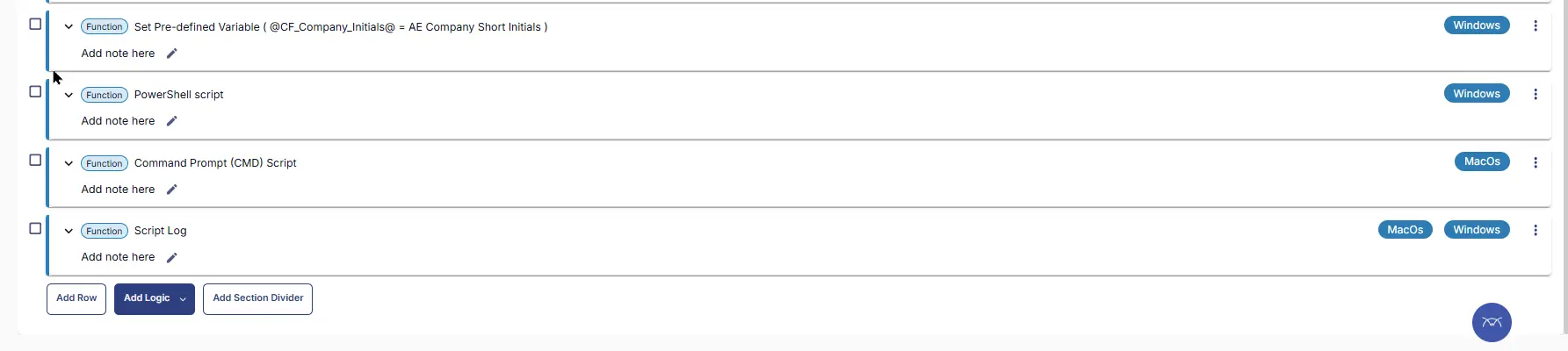
Row 4 Function: Set Pre-defined Variable (@CF_Company_Initials@ = AE Company Short Initials)
- Notes:
<Leave it Blank> - Continue on Failure:
False - Operating System:
Windows - Variable Name:
CF_Company_Initials - Custom Field:
AE Company Short Initials

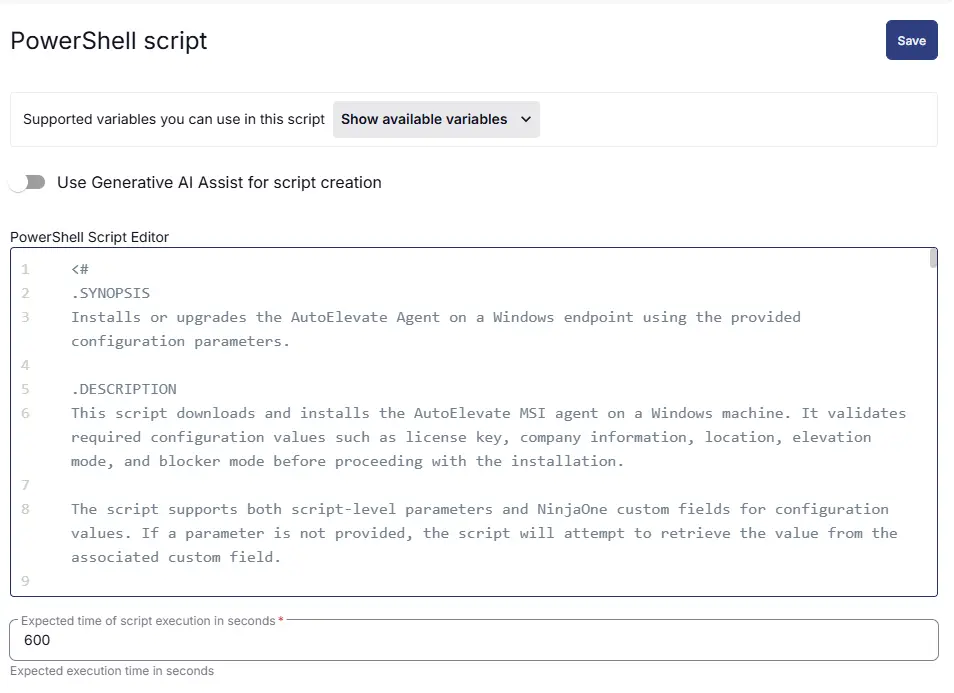
Row 5 Function: PowerShell script
- Notes:
<Leave it Blank> - Use Generative AI Assist for script creation:
False - Expected time of script execution in seconds:
600 - Continue on Failure:
False - Run As:
System - Operating System:
Windows - PowerShell Script Editor:
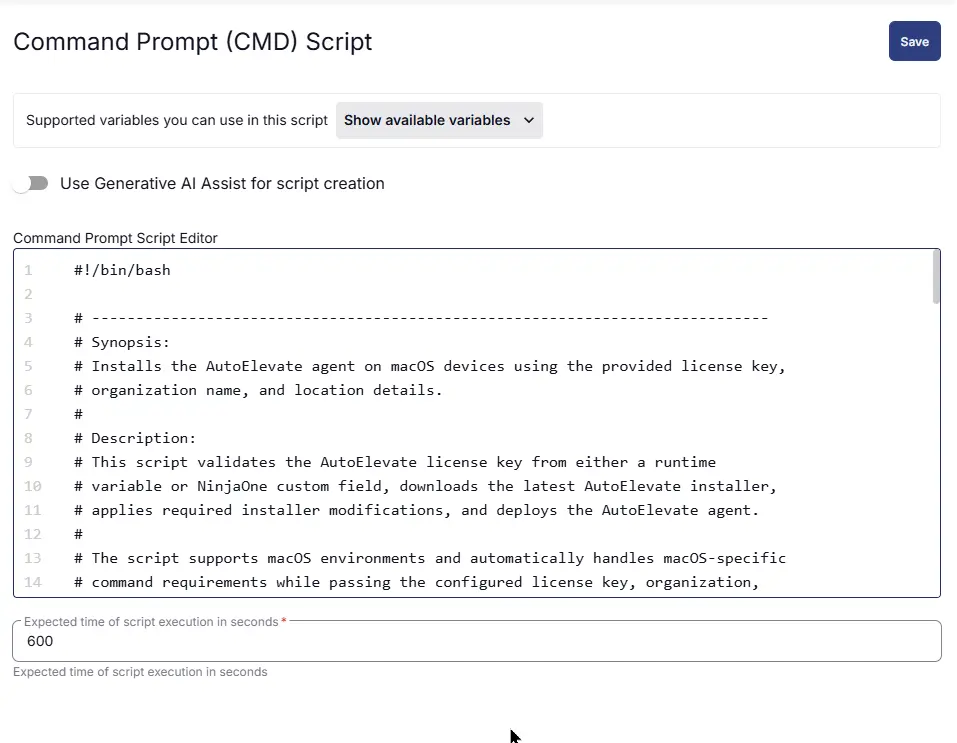
Row 6 Function: Command Prompt (CMD) Script
- Notes:
<Leave it Blank> - Use Generative AI Assist for script creation:
False - Expected time of script execution in seconds:
600 - Continue on Failure:
False - Run As:
System - Operating System:
MacOS - Command Prompt Script Editor:
Row 7 Function: Script Log
- Notes:
<Leave it Blank> - Continue on Failure:
False - Operating System:
Windows,MacOS - Script Log Message:
%Output%

Save Task
Click the Save button at the top-right corner of the screen to save the script.

Completed Task
Output
- Script Logs
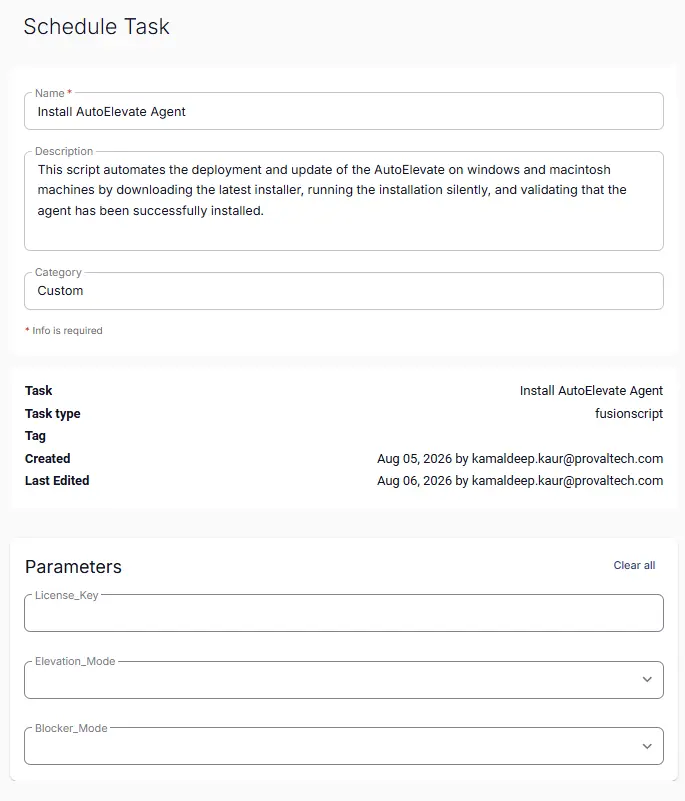
Schedule Task
Task Details
Name: Install AutoElevate Agent
Description: This script automates the deployment and update of the AutoElevate on windows and macintosh machines by downloading the latest installer, running the installation silently, and validating that the agent has been successfully installed.
Category: Custom
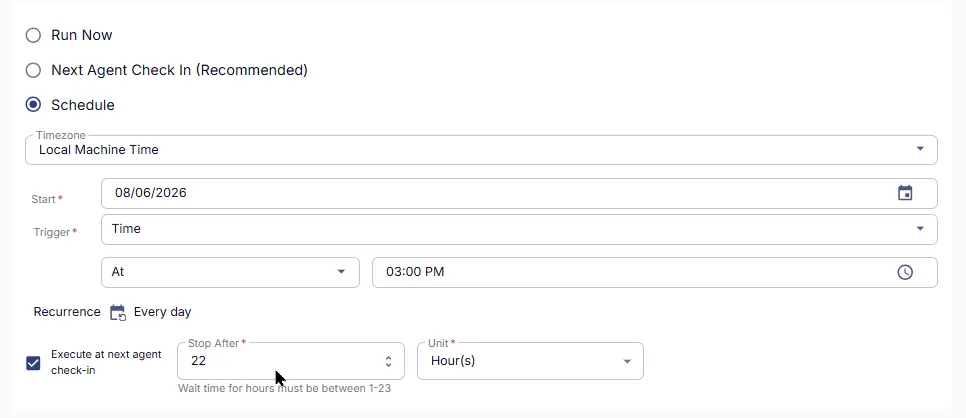
Schedule
- Schedule Type:
Schedule - Timezone:
Local Machine Time - Start:
<Current Date> - Trigger:
TimeAt<Current Time> - Recurrence:
Every day - Execute at next agent check-in:
True - Stop After:
22 - Unit:
Hour(s)
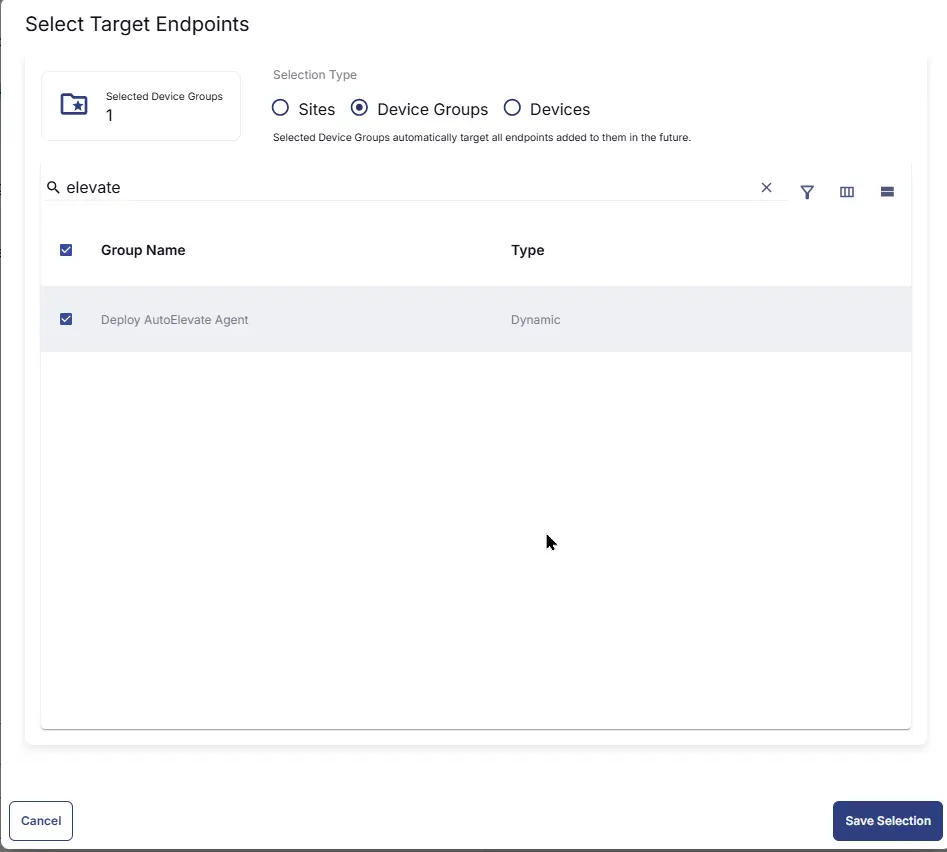
Targeted Resource
Device Group: Deploy AutoElevate Agent
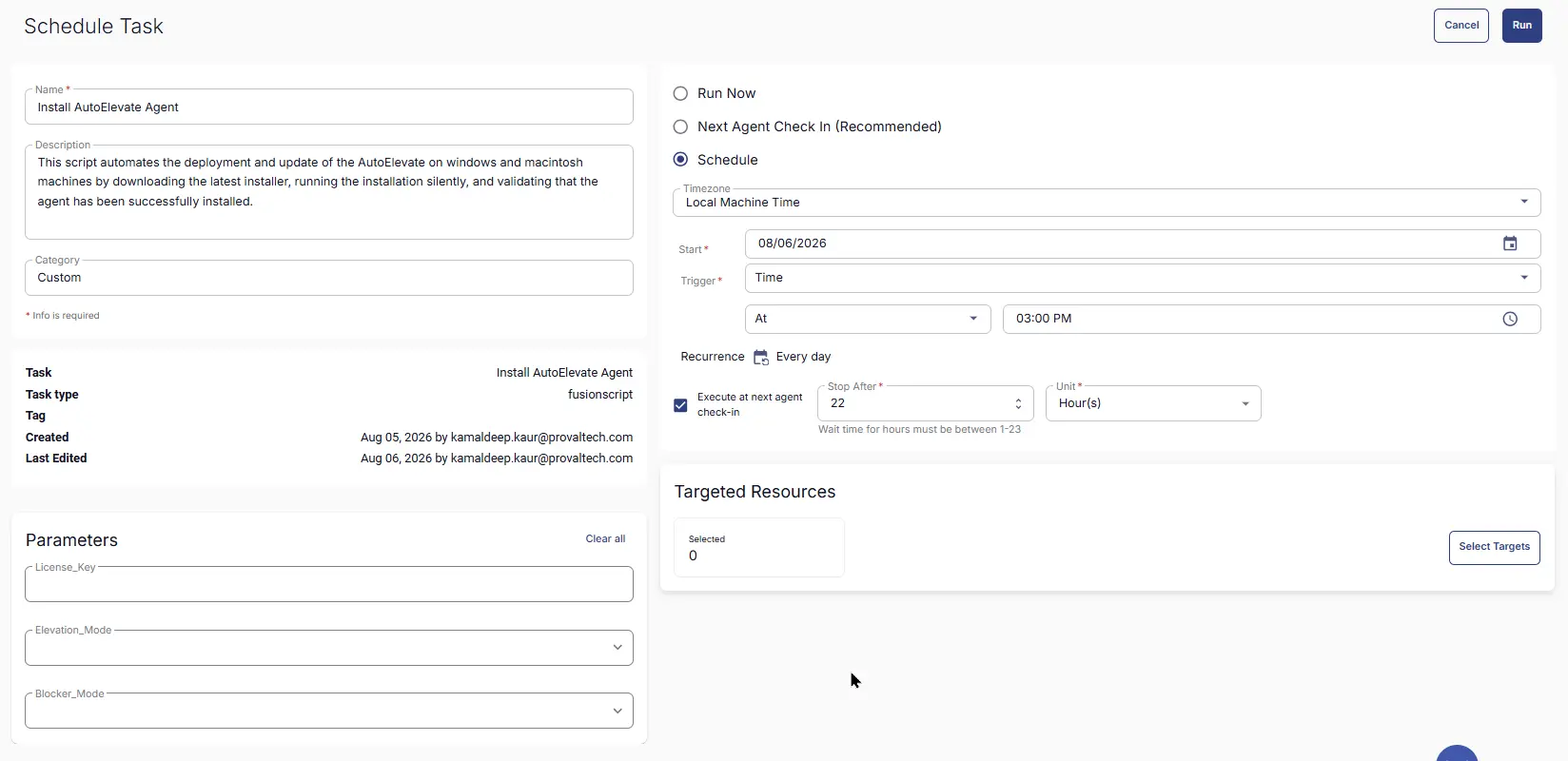
Completed Scheduled Task
Changelog
2026-08-10
- Initial version of the document