Microsoft 365 - C2R - Get Channel
Overview
This agent procedure is used to check the Update Channel for Microsoft Office and update the result to a UDF.
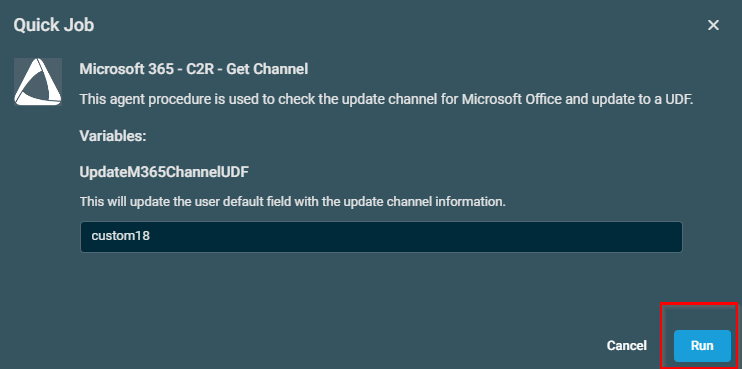
NOTE: By default, the script will update the UDF ID 18. In case this UDF is already in use, please update the default value of Variable UpdateM365ChannelUDF by editing the script.
Dependencies
Implementation
-
Download the component Microsoft 365 - C2R - Get Channel from the attachments.
-
After downloading the attached file, click on the
Importbutton -
Select the component just downloaded and add it to the Datto RMM interface.

Sample Run
To execute the component over a specific machine, follow these steps:
-
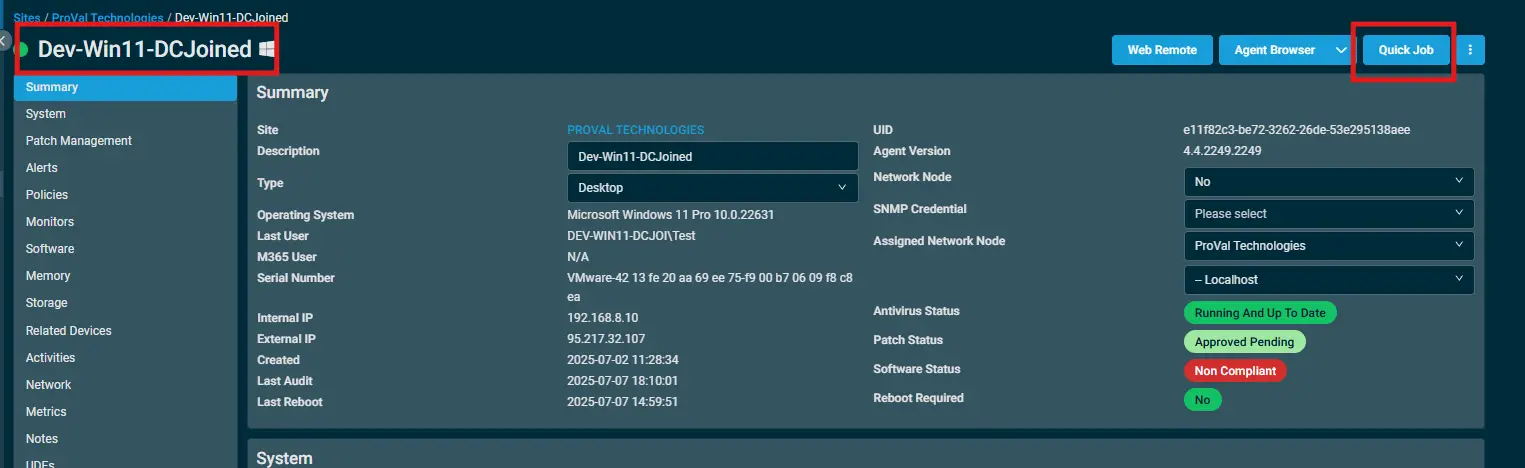
Select the machine you want to run the
componenton from the Datto RMM. -
Click on the
Quick Jobbutton.
-
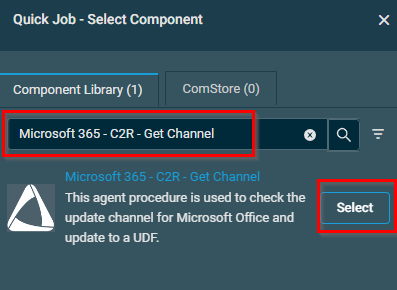
Search the component
Microsoft 365 - C2R - Get Channeland click onSelect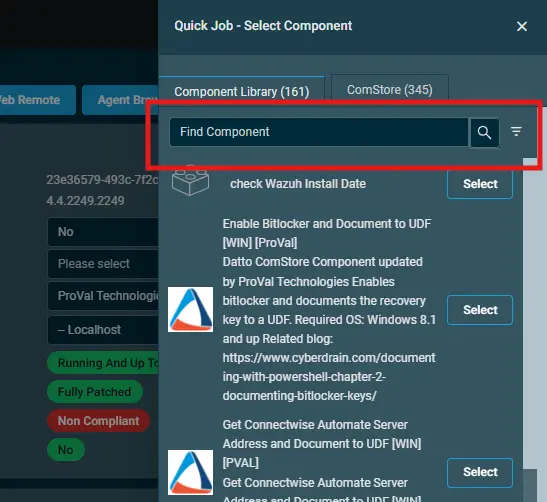
Datto Variables
| Variable Name | Type | Default | Description |
|---|---|---|---|
| UpdateM365ChannelUDF | String | custom18 | This will update the User-defined field (UDF) with the Update Channel information. Please change the value of the UDF after importing it to client's environment and set it to the available UDF ID. |
Output
- stdout
- stderr
Attachments
Microsoft 365 - C2R - Get Channel
FAQ
Q. How to set the UDF name?
A. To set the User Defined Field (UDF) name, please set it under the Setup > Global Settings > User-defined field 18 and set the value as Update M365 Channel so that it can reflect the same name under the devices UDFs.
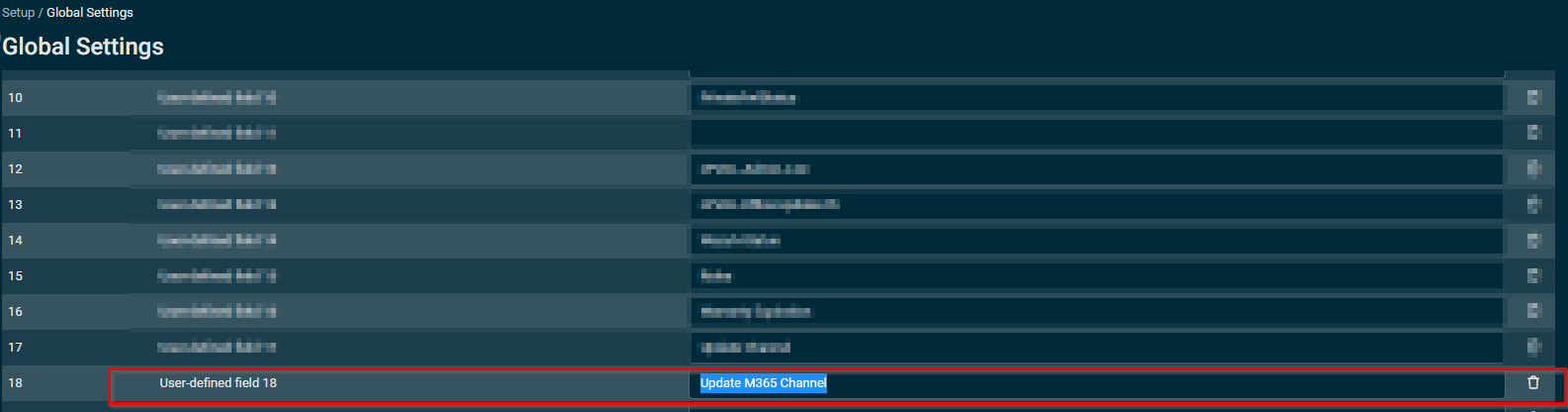
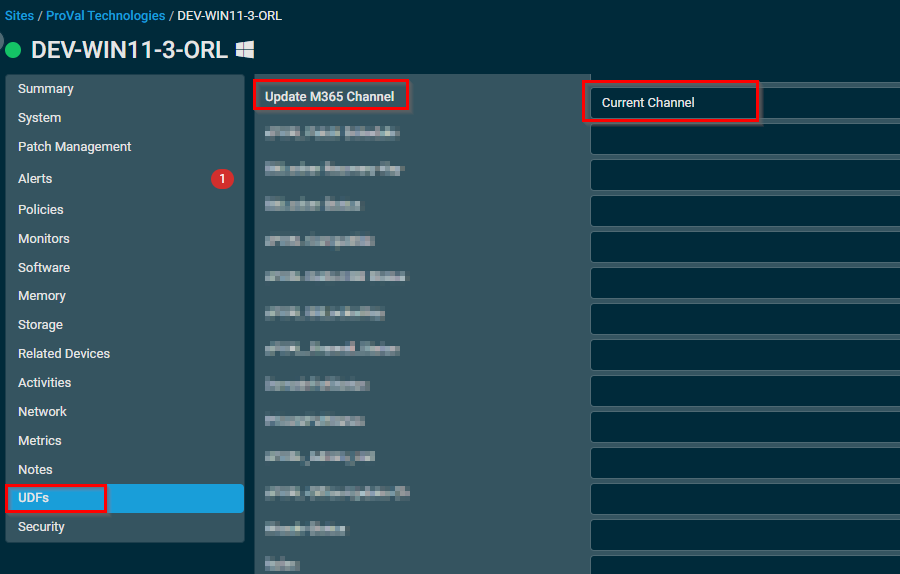
Q. What happen if we didn't set the user defined field name as Update M365 Channel under global settings?
A. The User-Defined Field X will still get updated with the Update channel value, where X is the UDF number, but the name of the UDFs will show as User-Defined Field X and not as Update M365 Channel.
Note: The script will not break with the Global UDF settings not updated.
Changelog
2026-01-30
- Initial version of the document