Sysmon - Uninstall
Summary
This script checks if Sysmon is installed and removes it using the built in uninstall switch.
Sample Run
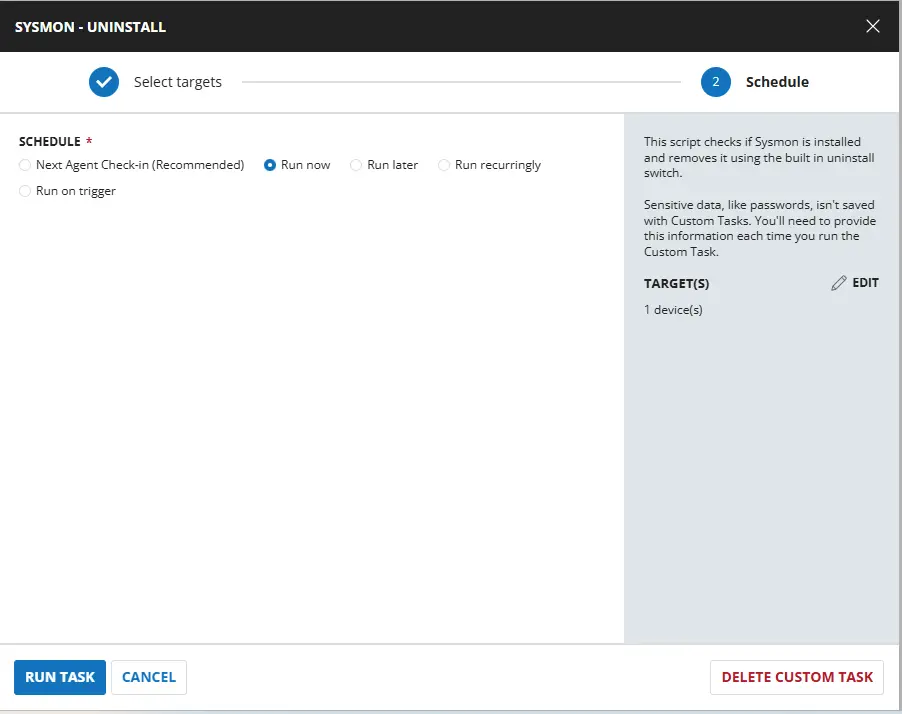
Dependencies
Task Creation
Script Details
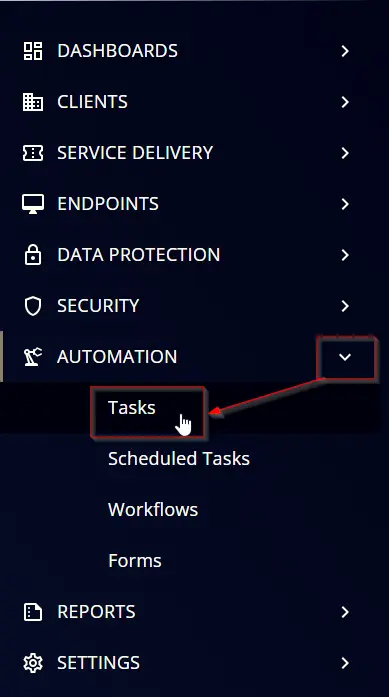
Step 1
Navigate to Automation ➞ Tasks
Step 2
Create a new Script Editor style task by choosing the Script Editor option from the Add dropdown menu

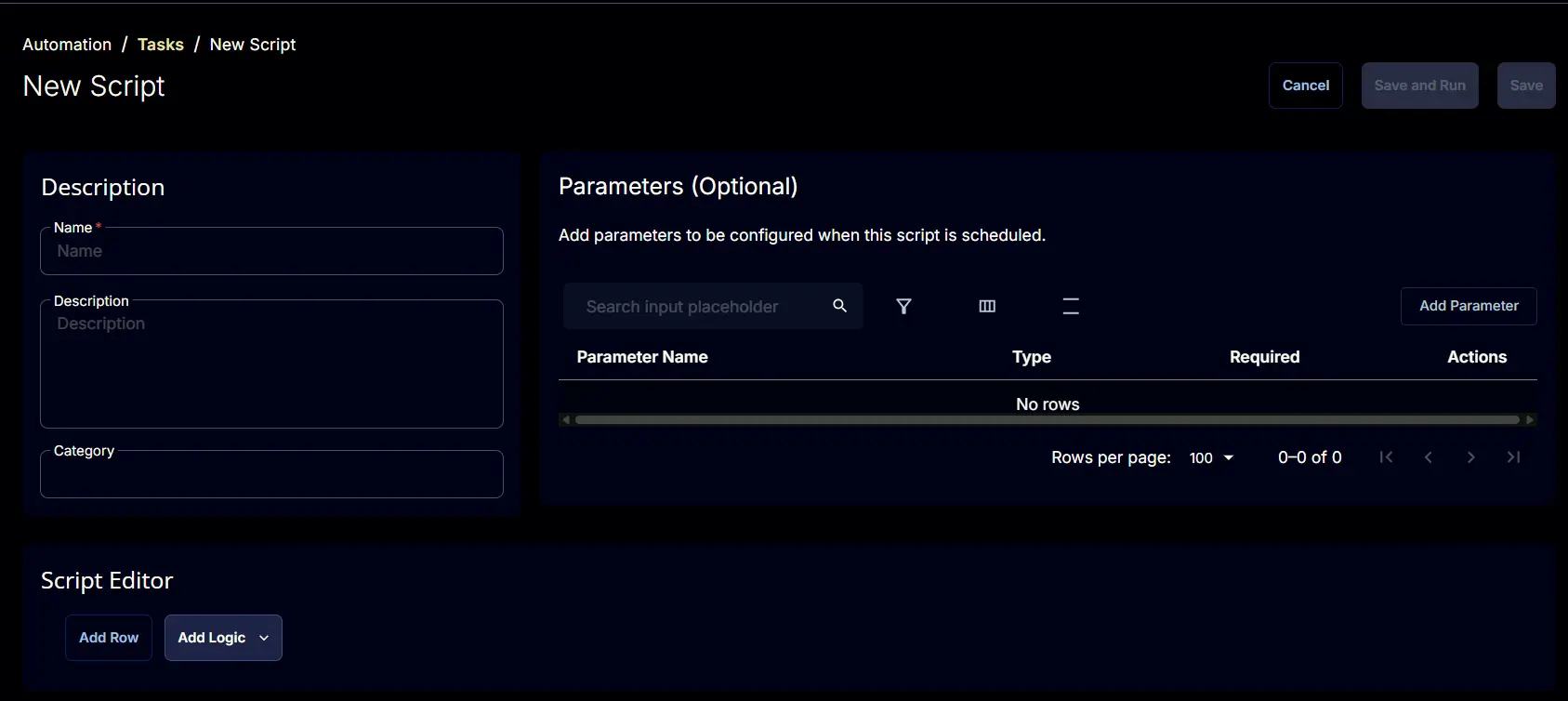
The New Script page will appear on clicking the Script Editor button:
Step 3
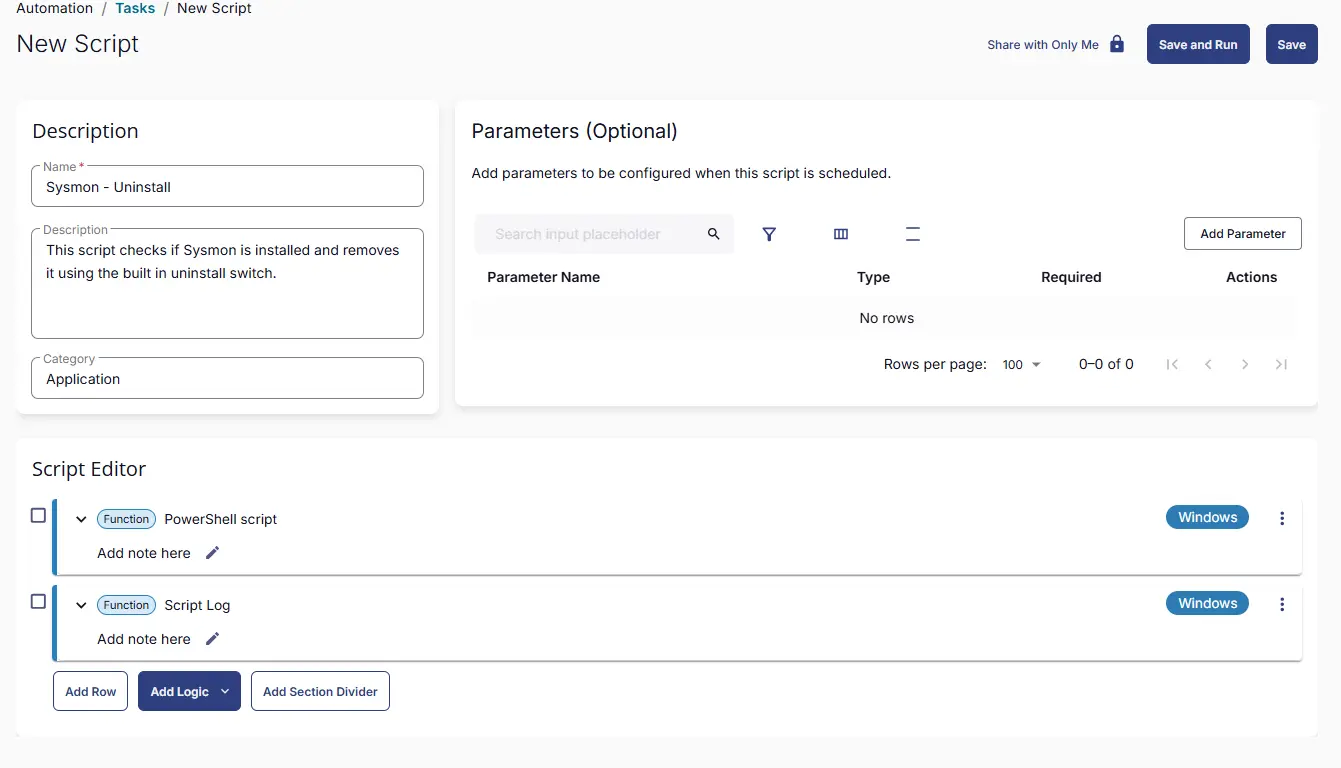
Fill in the following details in the Description section:
- Name:
Sysmon - Uninstall - Description:
This script checks if Sysmon is installed and removes it using the built in uninstall switch. - Category:
Application

Script Editor
Click the Add Row button in the Script Editor section to start creating the script

A blank function will appear:

Row 1 Function: PowerShell Script
Search and select the PowerShell Script function.

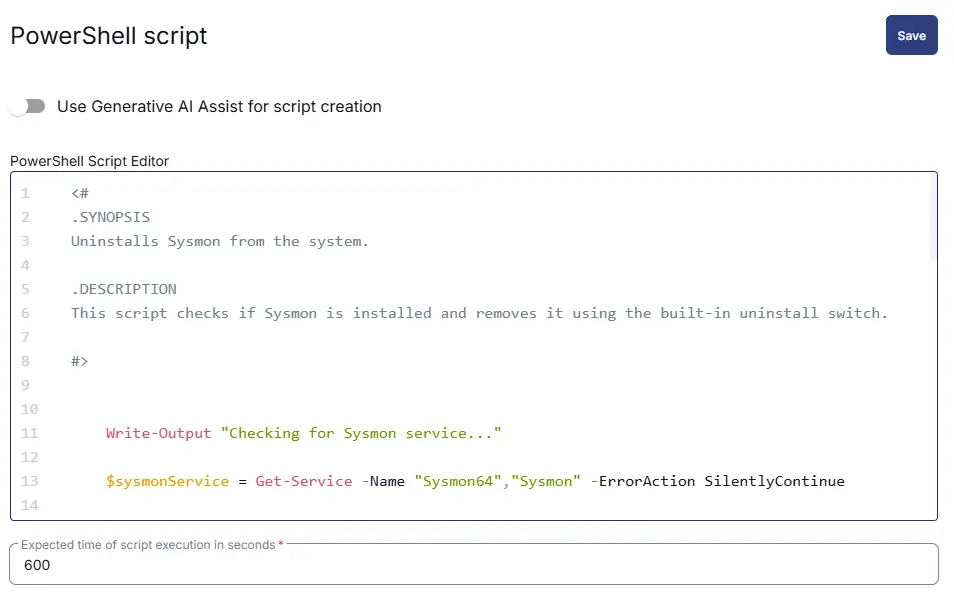
The following function will pop up on the screen:

Paste in the following PowerShell script and set the Expected time of script execution in seconds to 600 seconds. Click the Save button.
Row 2 Function: Script Log
Add a new row by clicking the Add Row button.
A blank function will appear.
Search and select the Script Log function.

In the script log message, simply type %output% and click the Save button.

Save Task
Click the Save button at the top-right corner of the screen to save the script.

Completed Task
Output
- Script Logs
Changelog
2026-03-26
- Initial version of the document